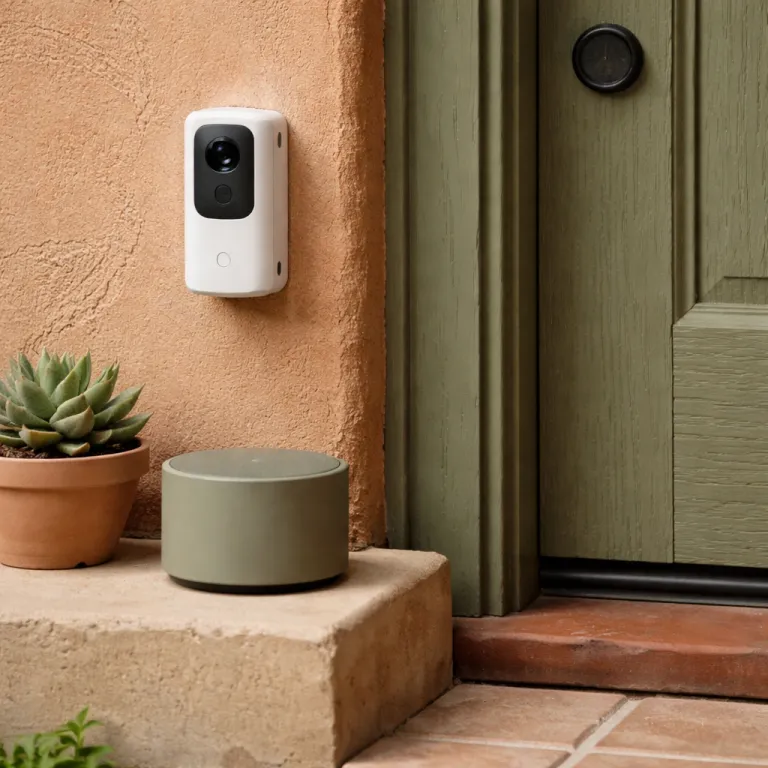
Why Ring and Alexa work better together than most smart homes
Ring camera Alexa integration is smoother than most mixed brand setups. When a Ring device talks to an Alexa enabled speaker or screen, you stay inside the Amazon ecosystem where the same company controls the cloud, the apps, and the firmware. That shared control often matters more for home security than any single camera spec, because it keeps your daily routines boringly reliable.
With a typical Ring Video Doorbell (such as Ring Video Doorbell 4) at the front door, the Ring app handles motion zones and notifications while the Alexa app turns those same events into spoken announcements on Echo speakers. Many households already own several Echo and Fire devices, so adding one more Ring device usually means the existing Wi Fi, Amazon account, and smart routines are already in place. That is why a basic doorbell camera plus a couple of Echo Show 5 or Echo Show 8 screens often feels more dependable than a fancier mix of Nest Cam, Blink Outdoor, and Google Nest Hub displays that never quite sync their alerts.
People often ask whether they should mix a Ring video doorbell with a Google Nest Hub or keep everything under Amazon. You can technically connect Ring to Google Nest displays, but you will not get the same instant live view or rich announcements that you get from Ring Alexa routines on Echo Show or Fire TV. If your priority is security and fast video rather than experimenting with every brand, keeping your core devices Alexa based is usually the safer long term bet.
Step by step: how to connect Ring to Alexa without breaking anything
Linking Ring devices to Alexa starts in the Alexa app, not in the Ring app. On your phone, open the Alexa app and follow this exact path: More → Skills & Games → Search, then type “Ring” and select the official Ring Skill. Tap Enable to Use (or enable Ring) and sign in with the same Amazon account you used for your Ring camera or Ring doorbell. Once the Ring Skill is active, Alexa will automatically discover each Ring device and add it to your list of enabled devices.
During that sign in, you must grant permission for Alexa to connect Ring services to your home security data. If you rush this step or use the wrong Amazon account, you will later wonder why your Echo speakers never announce motion at the front door or why live view never appears on your Echo Show. Take thirty seconds to read each prompt, confirm the Ring Alexa link, and wait for the device discovery progress bar to finish before you close the Alexa app screen.
After discovery, open the Devices tab in the Alexa app and group your Ring devices with the right Echo or Fire TV in each room. For example, you might set the Ring video doorbell to announce on the kitchen Echo Show and the hallway Echo, but not on the bedroom devices Alexa uses for sleep sounds. If you want deeper automation, this is also the moment to visit More → Routines and build the simple triggers that, in practice, work far better than the flashy demos you see in smart home marketing or in many enhancing your smart home with Ring camera technology guides.
The four Ring and Alexa routines that almost always work
Some Ring camera Alexa integration routines survive most firmware updates, router reboots, and app redesigns. These are the ones that tie a single Ring device event to a single Alexa action, with no extra conditions or cross brand services in the middle. Think of them as the security equivalent of a light switch rather than a Rube Goldberg machine.
Doorbell press triggers Echo Show announcements
Quick reference: Trigger = Ring doorbell press → Action = Alexa announcement on selected Echo or Fire devices. In the Alexa app, create a routine with the Ring video doorbell as the trigger, then choose an announcement action and select your preferred Echo speakers or Echo Show screens. When someone presses the doorbell camera at your front door, you hear a clear chime and spoken alert, and on an Echo Show you can tap to open live view without fumbling for the Ring app.
Motion turns on hallway or porch lights
Quick reference: Trigger = motion from a specific Ring camera → Action = turn on smart bulb or switch for a fixed time. Set a routine where motion detected by a particular Ring device turns on a smart light for a set duration, such as three minutes, and keep the logic as clean as possible. This works well with Ring devices that watch a driveway or side path, because the Echo system handles the timing while the Ring app continues to manage video recording and security alerts.
Away mode arms Ring Alarm and silences chatter
Quick reference: Trigger = voice phrase like “Alexa, I’m leaving” → Actions = arm Ring Alarm, adjust thermostats, mute non essential announcements. If you own Ring Alarm alongside a Ring camera, Alexa can help you set a predictable Away mode. Build a routine where saying a phrase to an Echo arms the alarm, adjusts smart thermostats, and mutes non essential announcements on selected enabled devices. The key is to keep the Ring Alexa link focused on security tasks while other smart brands like Blink or Nest handle their own side routines.
Voice arm and disarm with a secure PIN
Quick reference: Trigger = voice command plus PIN → Action = arm or disarm Ring Alarm. Voice control of Ring Alarm through Alexa is surprisingly robust when you configure it carefully. In the Alexa app, enable Ring Alarm control, set a spoken PIN, and test arming and disarming from a close by Echo device before you rely on it daily. Use a code that is not shared in other apps, and remember that anyone within microphone range of your Echo speakers could try to use that PIN, so balance convenience against security.
The flashy routines that rarely trigger the way you expect
Not every Ring camera Alexa integration routine behaves as smoothly as the basics. The more you ask Alexa to juggle multiple devices, video streams, and conditions, the more likely you are to hit a firmware edge case or a cloud delay. Two patterns in particular look great in marketing but often disappoint in real living rooms.
Motion plus automatic Fire TV live view
Many people try to set a routine where motion on a Ring camera automatically opens live view on a Fire TV device. In theory, the Ring Skill sends a trigger to Alexa, which then tells the Fire TV to pause whatever you are watching and show the doorbell camera feed. In practice, this chain often breaks when the Fire interface is asleep, when the app Alexa uses to talk to Fire TV is outdated, or when your video streaming service resists being interrupted.
Even when it works, the delay between motion and video can be long enough that the visitor has already walked away. If you want a more dependable setup, use an Echo Show or another Alexa enabled screen near your main seating area and rely on quick voice commands like Alexa, show the front door instead of fully automated Fire TV switching. You still benefit from Ring Alexa integration, but you avoid the fragile handoff between the Ring app, the Fire TV interface, and your streaming apps.
Multi camera dashboards on Echo Hub or large Echo Show
The other routine that rarely behaves perfectly is the multi camera dashboard on an Echo Hub or a large Echo Show. You can technically create a favorites view that shows several Ring devices and even some Blink or Nest cameras, but the refresh rate and video quality vary widely. When you ask Alexa to show all cameras, some Ring devices may load quickly while others time out, especially if your Wi Fi is stretched thin by multiple video doorbell and doorbell camera streams.
For most households, a more realistic pattern is to keep one or two priority Ring camera feeds pinned on the Echo Hub and call up other cameras on demand. This keeps your core security view responsive while still letting you connect Ring devices, Blink cameras, and even a Google Nest feed when you really need it. Think of the dashboard as a backup tool, not the primary way you monitor your front door or driveway.
Where Google Nest and Google Home fall short for Ring owners
Plenty of smart home enthusiasts try to mix Ring devices with Google Nest speakers and displays. The appeal is obvious, because Google Assistant handles questions well and Nest Hub screens look clean on a kitchen counter. The problem is that Ring camera Alexa integration still tends to outperform the limited support that Google Home offers for many third party security cameras.
On a Nest Hub, you typically see only a thumbnail or a delayed stream from a Ring camera, not the near instant live view you get on an Echo Show. There is no tight Ring Skill equivalent inside the Google Home app, so you lose the deep hooks that let Alexa issue announcements, arm Ring Alarm, or trigger routines from a video doorbell press. You can connect Ring to Google Nest services at a basic level, but the experience feels more like a generic IP camera than a fully integrated security system.
If you already own a mix of Nest and Ring devices, the most practical compromise is to let each ecosystem do what it does best. Use Google Nest speakers for voice queries and music, while relying on Echo devices and the Alexa app for security focused tasks like doorbell announcements and motion triggered lighting. That way, your Ring app and Ring Alexa routines handle the critical security flows, while Google Home plays a supporting role instead of pretending to be the central hub.
When Ring and Alexa stop talking: reset checklist that actually works
Even the best Ring camera Alexa integration can break when a Skill token expires or a firmware update lands overnight. If your Echo stops announcing the Ring doorbell or live view no longer opens on an Echo Show, assume the Ring Skill connection has quietly failed. The fix is rarely a factory reset of the camera, and almost always a clean relink of the accounts.
Unlink, re enable, and re discover in order
Quick checklist: (1) In the Alexa app, go to More → Skills & Games, open the Ring Skill, and disable it completely. (2) Reopen the same Ring Skill, tap enable Ring, and sign in again with the correct Amazon account that owns your Ring devices, making sure to grant every requested permission. (3) Run device discovery so Alexa can see each Ring device, from the video doorbell at the front door to any indoor Ring camera you have added.
After rediscovery, visit the Devices tab and confirm that your routines still point to the right Ring devices Alexa knows about. Sometimes the relink process creates duplicate entries, so a routine that used to watch the front door may now be listening to an old, offline Ring device. Clean up the list, delete stale entries, and then test each routine by pressing the doorbell camera button or walking in front of a motion zone while you listen for announcements on nearby Echo speakers.
The unglamorous truth about complex routines
Over time, people tend to pile more conditions, more devices, and more brands into their smart home routines. Every extra app, every extra skill, and every extra video stream is another failure mode when Amazon, Ring, Blink, or Google Nest push silent updates. The unglamorous truth is that simple routines, such as doorbell press equals announcement on two Echo devices, survive these changes far better than elaborate chains that try to pause Fire TV, dim lights, and show four cameras at once.
If you treat your Ring app and Alexa app as the primary security tools and keep other services in supporting roles, you will spend less time debugging and more time actually protected. When you are tempted to add one more clever trigger, ask whether it helps you respond faster to a real person at the front door or just looks impressive in a demo. In home security, the routine that wakes you up at 2 a.m. is worth more than the one that only works on presentation day.
For readers who want to go deeper into how Ring is turning its software into a more capable hub, a detailed analysis of Ring’s new app store and why your doorbell is about to act more like a smart home hub is available on a specialized Ring camera technology site that tracks these changes closely.
Key statistics on Ring, Alexa, and smart home security
- According to Amazon’s public statements about Alexa adoption, tens of millions of Alexa enabled devices and Echo speakers are active worldwide, which suggests most new Ring camera buyers already own at least one compatible device for announcements and routines.
- Ring has reported in its product marketing that its video doorbell models, including the Ring Video Doorbell Pro 2 and Ring Battery Doorbell Plus, remain among the best selling smart home security products on Amazon, indicating that doorbell camera integration with voice assistants is now a mainstream expectation rather than a niche feature.
- Independent smart home surveys and industry analyses have found that households with a unified ecosystem, such as Ring devices plus Alexa, often experience fewer automation failures than homes mixing multiple brands like Ring, Blink, and Google Nest for similar tasks, although exact reliability numbers vary by study.
- Consumer testing labs such as Consumer Reports have measured typical delays of only a few seconds between a Ring doorbell press and an Echo Show announcement in controlled tests, while more complex routines that involve Fire TV or multi camera dashboards can take significantly longer or fail to trigger, depending on network conditions and device settings.
FAQ about connecting Ring to Alexa
How do I link my Ring camera to Alexa for the first time ?
Open the Alexa app, go to Skills and Games, search for the official Ring Skill, and tap enable Ring before signing in with the same Amazon account you use for the Ring app. Grant all requested permissions, then let Alexa discover your Ring devices so they appear under the Devices tab. After that, you can create routines for doorbell announcements, motion alerts, and live view on Echo Show screens.
Why are my Ring doorbell announcements not playing on Echo devices ?
If your Echo speakers stopped announcing Ring doorbell presses, the Ring Skill link may have expired or changed. Disable the Ring Skill in the Alexa app, re enable it, sign in again, and run device discovery so Alexa can see each Ring device correctly. Then check your routines to ensure they still point to the current video doorbell entry rather than an old, offline device.
Can Alexa show Ring live view on Fire TV reliably ?
Alexa can show Ring live view on Fire TV when you ask with a voice command, but fully automated routines that pop up video on motion are less reliable. The chain between the Ring app, the Alexa service, and the Fire TV interface introduces delays and extra failure points. For dependable monitoring, most people get better results using an Echo Show or Echo Hub for quick live view access.
Is it worth mixing Ring cameras with Google Nest speakers and displays ?
You can mix Ring cameras with Google Nest speakers and displays, but the integration is shallower than with Alexa. On Nest Hub, Ring often behaves like a generic camera, with slower or less flexible live view and fewer automation options. If security routines are your priority, it is usually better to keep Ring devices tightly integrated with Echo and other Alexa enabled hardware.
What are the safest voice routines for Ring Alarm with Alexa ?
The safest voice routines arm and disarm Ring Alarm through Alexa using a secure PIN that you set in the Alexa app. Limit this control to Echo devices in trusted areas of your home and avoid sharing the PIN widely. Keep the routine simple, such as a single phrase to arm Away mode, so you reduce the risk of accidental triggers while still gaining hands free control.
References
- Amazon – official documentation for Alexa, Echo devices, Fire TV, and Ring Skill capabilities, including statements on active device counts and ecosystem features.
- Ring – product manuals, support articles, and marketing materials for Ring camera, video doorbell, and Ring Alarm integration with Alexa, plus sales rankings on Amazon product pages.
- Consumer Reports and similar testing labs – independent testing and reliability data on smart home security devices, Ring video doorbells, latency measurements, and comparisons with competing ecosystems.