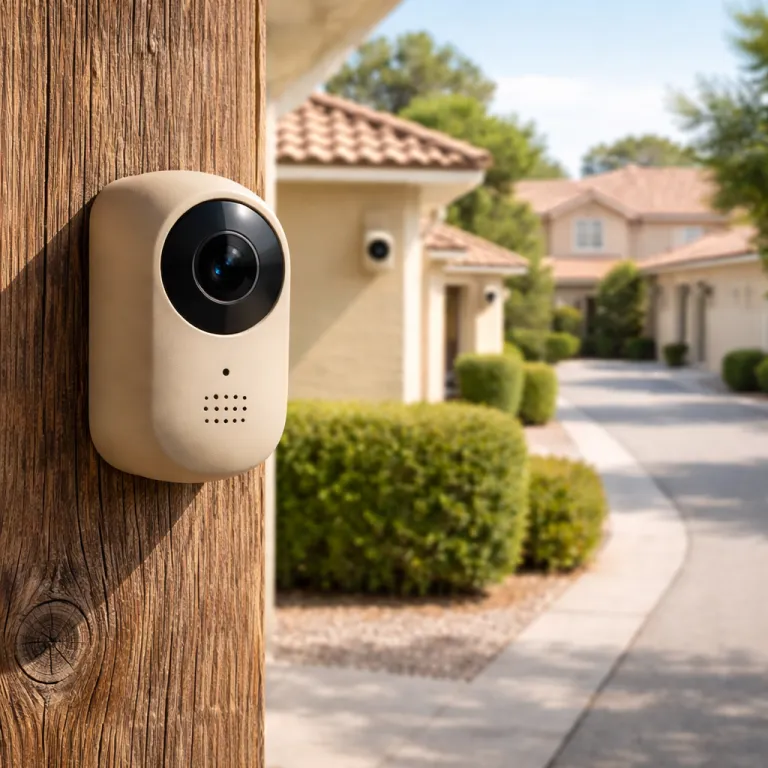
What Ring Active Warnings actually do on day one
Ring Active Warnings sound simple but behave in oddly specific ways. When you first enable this feature on a compatible Ring security camera or Ring doorbell, the device plays a short spoken message whenever it detects motion in certain conditions, yet the exact phrasing and timing are less obvious than Ring’s marketing suggests. Your goal is to shape that default behavior so the camera front of your home feels like a calm deterrent, not a talking billboard.
On most recent Ring cameras and video doorbells, including models like Ring Video Doorbell Pro 2, Battery Doorbell Plus, Spotlight Cam Pro, Floodlight Cam Wired Pro, and Stick Up Cam (3rd Gen), Active Warnings trigger after motion detection confirms a person-shaped motion event, then the cam plays a rotating set of pre-recorded phrases such as “Warning: You are currently being recorded,” “Hi, you’re on camera,” or “Warning: Audio and video surveillance in use.” In Ring’s own support language, these are described as “pre-set audio alerts” rather than custom recordings, and the Ring app does not clearly list every phrase, so during your initial Ring Active Warnings setup you should stand at your front door, walk slowly through the motion zones, and listen to what the device actually says in live view. Some cameras such as Spotlight Cam, Floodlight Cam, and Stick Up Cam behave slightly differently from a wired Doorbell Pro or a battery Ring doorbell, so test each device separately and note how long the delay is between motion and the spoken alert; on many setups this delay falls in the 1.5–3 second range, but your exact timing can vary with Wi‑Fi strength and firmware.
From a privacy and data perspective, Active Warnings do not change what video is recorded, but they change how people feel about being recorded. Neighbors will tolerate silent security cameras that quietly log motion events, yet a loud cam that shouts every time someone walks a dog can trigger complaints faster than any terms of service update. Treat the first week as a live experiment, watch the motion events timeline in your Ring account, and adjust the settings before your whole cul de sac learns the warning script by heart. For the most accurate information on which devices support the feature and how recordings are handled, compare your observations with Ring’s official device feature lists and current privacy documentation in the app’s Device Details and Legal & Regulatory sections, then cross‑check any changes against the firmware release notes that appear under the Help or Support menus.
Dialing in zones so only the right areas speak up
The smartest Ring Active Warnings setup starts with ruthless control of motion zones. Instead of letting every Ring camera or Ring doorbell shout across the street, you draw tight motion zones around the areas where you genuinely want a spoken warning, such as the path to your front door or the side gate. Leave the public sidewalk and the neighbor’s driveway outside those zones, and your security instantly feels more respectful.
Open the Ring app, choose the specific device, then use the Settings tap to reach Motion Settings and Motion Zones for that camera or doorbell. On most current models, the path looks like: Settings → Motion Settings → Motion Zones → Edit Zones, then drag the blue shapes until they only cover your property. For a camera front that faces a busy road, shrink the active zone to a narrow trapezoid that hugs your garden or porch, then use live view to confirm that only people entering your property trigger events and alerts. On a Ring Video Doorbell Pro 2, for example, you will see a top‑down “Bird’s Eye View” map that lets you drag the motion area away from the sidewalk, while a Battery Doorbell Plus or Indoor Cam instead shows a rectangular grid you can tap to enable or disable individual blocks. Repeat this for all your Ring cameras and other smart security cameras, because each device has its own motion detection map and its own Active Warnings behavior.
Privacy zones are often misunderstood here. They block video and hide parts of the view in recordings, but they do not silence motion events or Active Warnings by themselves, so they are the wrong tool if you only want the cam to stop talking at passersby. Think of privacy zones as a visual mask for video data, while motion zones are the audio gatekeeper that decides when the camera, the Floodlight Cam, or the Spotlight Cam actually speaks. If you recently updated firmware on a Battery Doorbell Plus or Indoor Cam, double check motion behavior after any major Ring update by reading a detailed firmware breakdown such as the one on “Ring’s April firmware push for Battery Doorbell Plus and Indoor Cam owners,” then compare those notes with the firmware version listed on your device details page under Device Health → Device Details → Firmware.
Time of day rules: quiet afternoons, assertive nights
Active Warnings feel very different at 14:00 than they do at 02:00. During the day, a Ring camera that talks every time the mail carrier walks up can sound hostile, while at night the same warning from a Spotlight Cam or Floodlight Cam can stop a prowler before they test a door handle. The art of Ring Active Warnings setup is deciding when your devices should act like a polite greeter and when they should behave like a firm security guard.
Use the Ring app to pair motion schedules with your motion zones so that only night-time motion events trigger spoken alerts on your cameras. On most supported models, you reach this by tapping Settings → Motion Settings → Motion Schedules, then creating a rule that disables motion alerts and Active Warnings during quiet hours. For example, you might let your Ring doorbell stay silent from breakfast until early evening, then enable Active Warnings from dusk until dawn on the camera front that covers your driveway and on any Stick Up Cam watching a side alley. This way, your security cameras still record video events and send phone alerts, but they only speak when unexpected visitors appear in the dark. On a Floodlight Cam Wired Pro, you can confirm this by opening Settings → Motion Settings → Motion Schedules and checking that the schedule icon appears on the main device dashboard, which Ring’s support articles describe as the indicator that a schedule is active.
Before you lock in those schedules, walk your property at different hours and listen. Stand on the sidewalk, then tap live view on each device and trigger motion to hear how far the warning carries toward the next house. If you are planning a multi-camera layout, it is worth reading a planning guide such as “mapping your property before you mount anything” to avoid overlapping audio coverage that turns three helpful cams into a chorus that wakes the whole street. Use your notes to build a simple checklist: confirm zones, confirm schedules, then confirm volume and distance for each device, and jot down approximate distances (for example, “Doorbell Pro 2 clearly audible at 8–10 meters”) so you can revisit the same spots after future firmware updates.
The neighbor courtesy test and when to turn it off
Every serious Ring Active Warnings setup should pass what I call the neighbor courtesy test. Stand where your neighbors usually walk, trigger motion on your Ring cameras, and count how many spoken alerts you can clearly hear from each device. If more than one camera or Doorbell Pro is loudly announcing itself from that spot, your security has crossed the line into neighborhood noise.
Corner lots and homes with a camera front facing a shared path need special care. You might keep Active Warnings enabled only on the single Ring doorbell at the front door, while leaving the side yard cam and any rear Stick Up Cam completely silent but still recording motion events and video. Rural properties flip that logic, because there the nearest neighbor may be hundreds of meters away, so you can safely let a Floodlight Cam or Spotlight Cam use full volume warnings without worrying about constant complaints. When in doubt, check local noise guidelines and Ring’s own community recommendations to see how other owners balance deterrence with courtesy, and look at the volume slider or speaker level control under Settings → Device Settings → General Settings (or Audio Settings on some models) to keep the spoken alerts closer to a firm reminder than a shouted alarm.
There are also times when disabling Active Warnings entirely is the right move. If you host frequent guests, have a predictable visiting routine, or share a driveway with another household, spoken alerts can feel accusatory even when your intent is simple security. In those cases, rely on silent alerts in the Ring app, use live view to check visitors, and remember that you can still compare Ring with alternatives such as Nest or Arlo by reading independent analyses like “why Ring users switch to Nest Cam and why most come back” before you commit to one ecosystem for all your devices. Treat this as a troubleshooting step: if you cannot make the warnings feel polite and useful, turn them off and lean on notifications instead, then document your changes in a simple log so you can see which combination of zones, schedules, and volume actually reduced complaints.
Living with Active Warnings: familiar faces, data, and long term habits
Once the novelty wears off, a good Ring Active Warnings setup should fade into the background of daily life. You will still see motion events and video clips in your Ring account, but the spoken alerts from each camera or doorbell will feel rare, targeted, and clearly tied to real security concerns. If you find yourself muting your phone or dreading the next shout from the porch, that is your signal to revisit the settings and run through a quick checklist: zones, schedules, volume, and which devices actually speak.
Some Ring devices now lean on AI-powered features such as person detection and package alerts, which refine when motion detection becomes a true security event. Use those tools to reduce noise before you even touch Active Warnings, then fine-tune each cam with separate motion zones for the driveway, the front door, and the side path. Remember that privacy zones only affect what appears in the video view, not when the camera speaks, so they complement but never replace careful motion tuning. For details on how these features work on specific models, compare your app options with the feature tables and support articles Ring publishes for each generation of camera, and verify that the options you see on screen match the capabilities listed in the Device Features or Tech Specs sections for your exact model.
Over time, treat your Ring cameras as evolving devices rather than fixed appliances. Firmware updates, new app options, and changes to Ring’s terms of service can all shift how data is handled and how alerts behave, so review your settings tap by tap every few months. In the end, the value of any smart security setup is not the megapixel count, but the view from your porch at 2 a.m., and how confidently you can say that your Active Warnings are helping rather than just adding more noise. When you can point to specific, verifiable behavior—such as “Doorbell Pro 2 now says ‘Warning: You are currently being recorded’ only after 21:00 in the front path zone”—you know your configuration is grounded in what Ring’s own documentation promises and what your cameras actually do.
FAQ
How do I enable Active Warnings on my Ring camera or doorbell?
Open the Ring app, select the specific device, then use the Settings tap to reach Motion Settings or Audio Settings where the Active Warnings toggle appears on supported models. On many newer devices, the path is Settings → Motion Settings → Advanced Settings → Active Warnings. Turn it on, walk through your motion zones, and use live view to confirm when the spoken alerts trigger. Repeat this process for each of your Ring cameras and video doorbells, because capabilities differ between models such as Doorbell Pro 2, Spotlight Cam Pro, Floodlight Cam Wired Pro, and Stick Up Cam, and Ring’s support pages note that not every generation receives the feature at the same time.
Which Ring models support Active Warnings today?
Active Warnings are available on many newer Ring cameras and doorbells, including several wired and battery video doorbells, Spotlight Cam variants, Floodlight Cam models, and recent indoor or outdoor cams. For example, Ring Video Doorbell Pro 2, Battery Doorbell Plus, Spotlight Cam Pro, Floodlight Cam Wired Pro, and Indoor Cam (2nd Gen) are among the devices that currently list Active Warnings in their feature sets. Older devices or some entry-level cameras may not offer the feature, even if they support standard motion detection and alerts. Check the device details page in your Ring account or within the Ring app to confirm support before planning your Ring Active Warnings setup, and compare what you see there with the compatibility tables in Ring’s official support articles or product spec sheets.
Will Active Warnings record extra audio or share more data?
Turning on Active Warnings does not change the basic way your Ring device records video and audio, but it does change how noticeable that recording feels to people nearby. The spoken message is generated by the device itself, while motion events and video clips are still stored and managed under your existing Ring account settings. Always review Ring’s current terms of service, privacy documentation, and any firmware release notes for your specific model to understand how your security cameras handle data over time, and confirm in the app’s Control Center or Privacy & Security menus that your video retention and sharing preferences still match what Ring’s policies describe.
How can I stop Active Warnings from annoying my neighbors?
Start by tightening motion zones so that only people approaching your front door or crossing private areas trigger the spoken alerts. Then add time-of-day rules so that Active Warnings are active mainly at night, when unexpected visitors are more likely to be genuine security risks. If complaints persist, disable the feature on cameras that face shared spaces and rely on silent alerts in the Ring app instead, and consider lowering the volume where your device offers a separate slider for speaker output. Ring’s help articles describe this as adjusting the “speaker volume” or “device volume,” usually found under Settings → Device Settings → General Settings or Audio Settings, and you can use that control to reduce how far the warnings carry.
When should I turn Active Warnings off completely?
Active Warnings make the most sense on homes where uninvited visitors are a real concern, such as corner lots with frequent foot traffic at night. If you live on a quiet rural property, share a driveway, or host regular guests who already expect to be on camera, the spoken alerts can feel excessive. In those cases, keep motion detection and recording enabled, but leave Active Warnings off so your security remains effective without becoming a constant announcement system, and rely on your event history and live view instead. Revisit Ring’s support guidance and your own test recordings every few months so that if your situation changes—new neighbors, different traffic patterns, or a firmware update that adds new phrases—you can decide again whether the feature earns its place in your setup.