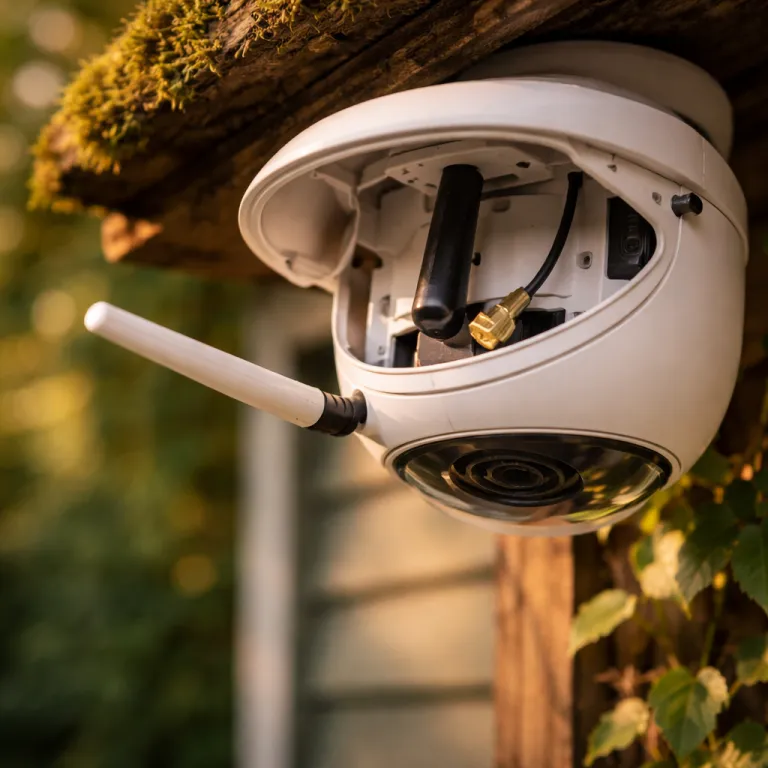

Why ring camera wifi dropping is usually a router problem, not distance
When people complain about ring camera wifi dropping, the camera is rarely the real villain. Most of the time the issue lives inside the wifi router, where dual band steering quietly pushes your Ring Video Doorbell or security camera toward a 5 gigahertz band it cannot reliably use. That invisible handoff can interrupt the wireless network link, so the live view fails while your other devices keep streaming happily.
Every modern router modem from a big router manufacturer loves to merge 2.4 gigahertz and 5 gigahertz bands under one name. That single network name looks clean in the Ring app during setup, but it hides which band your device actually joins and makes later setup issues very hard to diagnose. When the router decides to move the Ring wifi connection to 5 gigahertz for speed, the camera often drops offline or shows weak wifi signal even when it sits only a few metres away from the access point.
Think about a Ring Video Doorbell Wired or a Ring Stick Up Cam Battery mounted near a thick brick wall. The 2.4 gigahertz band travels through that wall better, while 5 gigahertz dies quickly and ruins signal strength for uploads. If your wifi router insists on band steering, you will see the Ring connection cutting out during motion events, when the device suddenly needs more internet bandwidth to send video clips and snapshots.
Reading the numbers: RSSI, light patterns, and real signal strength
Before you blame the device, open the Ring app and check the RSSI value under the ring device health screen. For stable streaming you generally want that wifi signal number better than about minus sixty five decibels milliwatt, because anything lower means the network link may wobble whenever someone rings the bell. Ring’s own support documentation notes that values closer to minus eighty often lead to connection problems, so expect ring camera wifi dropping whenever the camera switches mode, updates firmware, or uploads longer clips.
On many plug in ring devices, the front light and side light patterns quietly tell you what the wifi network is doing. A slow pulsing light during the setup process usually means the camera is searching for the router, while rapid flashes can indicate a failed reset device attempt or a blocked internet connection. Learn those light patterns once, because they are faster to read at the door than digging through menus during a late night power cycle or emergency reboot.
Battery powered models add another variable, since low battery voltage can mimic bad wifi signal and cause similar setup issues. When the battery dips, the device may shut down its radio more aggressively, which leads to intermittent wifi disconnects exactly when you try to view a live view or answer a call. Always check both battery level and RSSI together, then decide whether to charge, move the router, or adjust smart lighting schedules that keep the camera awake too long and drain power.
Separating 2.4 gigahertz on Eero, Orbi, and Xfinity without buying a Chime Pro
If you use an Eero system and see ring camera wifi dropping, the culprit is usually band steering rather than raw distance. Eero hides separate 2.4 gigahertz and 5 gigahertz names, so your Ring wifi connection rides whichever band the router prefers at that moment. During setup, temporarily move the ring device and your phone close to one Eero node, then in the Eero app go to Settings > Troubleshooting > My device won’t connect and enable the 2.4 gigahertz compatibility mode so the device locks onto the 2.4 gigahertz wifi network.
Netgear Orbi behaves differently, because many Orbi models let you create a guest network that runs only on 2.4 gigahertz. In the Orbi web interface, open Advanced > Advanced Setup > Wireless Settings, create a dedicated guest wifi router name for cameras, and set it to 2.4 gigahertz only if your firmware allows band selection. Connect all Ring devices to that network, and you will usually stop random wifi dropouts without touching the main SSID. Xfinity gateways often need a manual split in their admin page, where you create one network name for 2.4 gigahertz and another for 5 gigahertz under Gateway > Connection > Wi‑Fi, then tap the correct one during each setup process.
This is where a Chime Pro sometimes helps, but not always enough to justify the cost. When placed roughly halfway between the router modem and the door, a Chime Pro can extend wifi signal in clear air, yet walls and metal doors cut that distance sharply. Ring’s own guidance notes that the extender still depends on the main router’s stability, so if you already plan professional security camera installation in Houston or another dense city, a wired access point near the door usually beats a Chime Pro for long term reliability and avoids another device to reset power after outages.
Mesh, extenders, and wired access points: which setup survives bad weather
Homeowners often add a cheap range extender when they notice ring camera wifi dropping, but that quick fix can create more problems than it solves. Many extenders broadcast a second wifi network name, and Ring devices sometimes cling to the weaker original network instead of the closer extender. That split confuses the setup process, especially when your phone sits on one network while the camera tries to join another during the initial setup.
A true mesh system, whether from Eero, Orbi, or Google Nest Wifi, keeps one network name and lets each device roam between nodes, which usually improves signal strength for outdoor cameras. The catch is that some mesh systems steer aggressively toward 5 gigahertz, so you must still ensure the Ring wifi connection stays on 2.4 gigahertz for doorbells mounted behind brick or metal. In very cold climates, a wired access point mounted indoors near the exterior wall gives the most stable wifi signal, because it ignores temperature swings that can affect plastic housings and cheap power adapters.
Think about your long term smart lighting and camera plan before you buy more hardware. If you expect to add several Ring devices, a solid mesh or wired backbone costs more upfront but saves hours of factory reset attempts, random power cycle routines, and repeated calls to your router manufacturer. When the network is built well, you spend your evenings adjusting motion zones and smart lighting schedules instead of wondering why the internet drops every time the wind shakes the front gate.
The reboot and reset sequence that actually fixes ring camera wifi dropping
When ring camera wifi dropping starts suddenly after months of stability, resist the urge to hit factory reset on the camera first. Begin with a clean power cycle of the router modem by unplugging it, waiting a full minute, then restoring power and letting the internet connection fully stabilise. Only after the wifi router is healthy should you cycle device power on the Ring unit by removing its battery or unplugging its adapter for thirty seconds.
If the camera still misbehaves, use the Ring app to check device health, RSSI, and firmware before you attempt a full factory reset. A factory reset wipes the setup process history, so you will need to tap through every setup step again, reconnect to the correct wifi network, and reconfigure smart lighting or motion zones. Save this nuclear option for cases where the light patterns show no response, the device ignores every reset power attempt, or the Ring app cannot even view basic status information.
Once everything is back online, take five minutes to learn from the failure and harden your network. Label your 2.4 gigahertz wifi router name clearly, document the reboot order for all Ring devices, and note which outlet or breaker controls power for each camera. That small checklist turns the next outage from a midnight guessing game into a calm three step routine, and it keeps your focus where it belongs, on the view from your porch at two in the morning rather than on blinking lights.
Key statistics about Ring connectivity and Wi‑Fi reliability
- Ring cameras are designed to connect primarily to 2.4 gigahertz Wi‑Fi, which offers better wall penetration and range than 5 gigahertz for most residential layouts.
- For reliable live view and event recording, an RSSI value better than about minus sixty five decibels milliwatt is generally recommended at the camera location, matching guidance from Ring’s official support articles.
- Dual band routers that merge 2.4 gigahertz and 5 gigahertz under one SSID are now the default configuration for many consumer models from major manufacturers.
- Ring’s Chime Pro is intended to extend Wi‑Fi coverage for compatible devices, but walls and metal structures significantly reduce its effective range, especially in older brick or concrete homes.
- Battery powered Ring devices are more sensitive to marginal Wi‑Fi conditions, because low battery levels can cause the radio to power down more aggressively during idle periods.
Frequently asked questions about ring camera wifi dropping
Why does my Ring camera keep going offline while my phone’s Wi‑Fi works?
Phones and laptops usually support both 2.4 gigahertz and 5 gigahertz, while many Ring cameras prefer 2.4 gigahertz for range. When a dual band router steers the camera toward 5 gigahertz, the link can become unstable even though your phone still sees strong internet access. Checking the RSSI in the Ring app and separating the 2.4 gigahertz band on your router often resolves this mismatch.
Do I really need a Chime Pro to fix weak Ring Wi‑Fi?
A Chime Pro helps when the router is simply too far from the door and you cannot move either device. If the problem is band steering or a merged SSID, a Chime Pro may not stop ring camera wifi dropping, because it still relies on the same underlying network behaviour. Try separating the 2.4 gigahertz band and optimising router placement before spending money on extra hardware.
How can I tell if my Wi‑Fi signal is strong enough for a Ring camera?
Open the Ring app, go to device health, and look at the RSSI number for that camera. Values better than about minus sixty five decibels milliwatt usually support smooth live view and event uploads, while numbers closer to minus eighty indicate a higher risk of dropouts. If the RSSI is poor, move the router, add a properly placed mesh node, or reduce obstacles like metal doors between the camera and the access point.
When should I perform a factory reset on my Ring camera?
A factory reset is a last resort for persistent problems that survive normal reboots of both the router and the camera. Use it when the device will not enter setup mode, ignores standard reset power steps, or fails to appear in the Ring app even after a clean network restart. Remember that a factory reset erases settings, so you must redo the entire setup process and reconfigure motion zones and smart lighting options.
Is a mesh Wi‑Fi system better than a range extender for Ring devices?
A well designed mesh system usually provides more consistent coverage and roaming than a basic range extender, which often creates a second network name and confuses devices. For multiple Ring cameras spread around a property, mesh or wired access points near exterior walls tend to reduce ring camera wifi dropping more effectively. Extenders can still help in small spaces, but they require careful placement and clear SSID naming to avoid connection loops.